Open the website in Safari
This step is only needed if you are not already viewing this page in Safari on your iPhone. If you are, skip to Step 2.
Open the Safari app and enter this address:
https://strawberryfarmsmensclub.com
 Member site

Phone Home Screen app
Install from Safari on iPhone or Chrome on Android—no app store is required.
iPhone instructions
This step is only needed if you are not already viewing this page in Safari on your iPhone. If you are, skip to Step 2.
Open the Safari app and enter this address:
https://strawberryfarmsmensclub.com
Follow these four taps. The pictures below are from an iPhone using Safari's Page Menu layout.

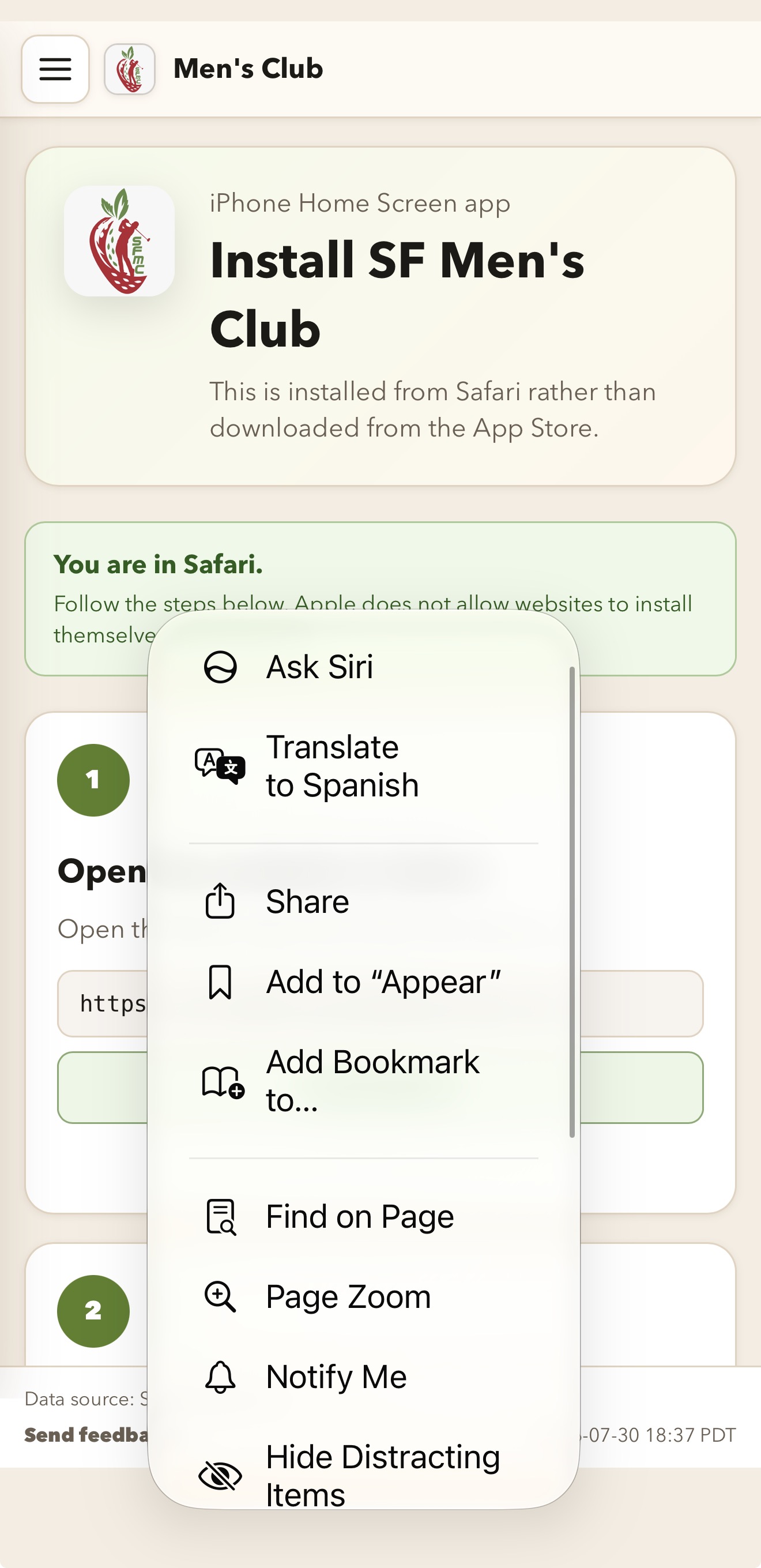
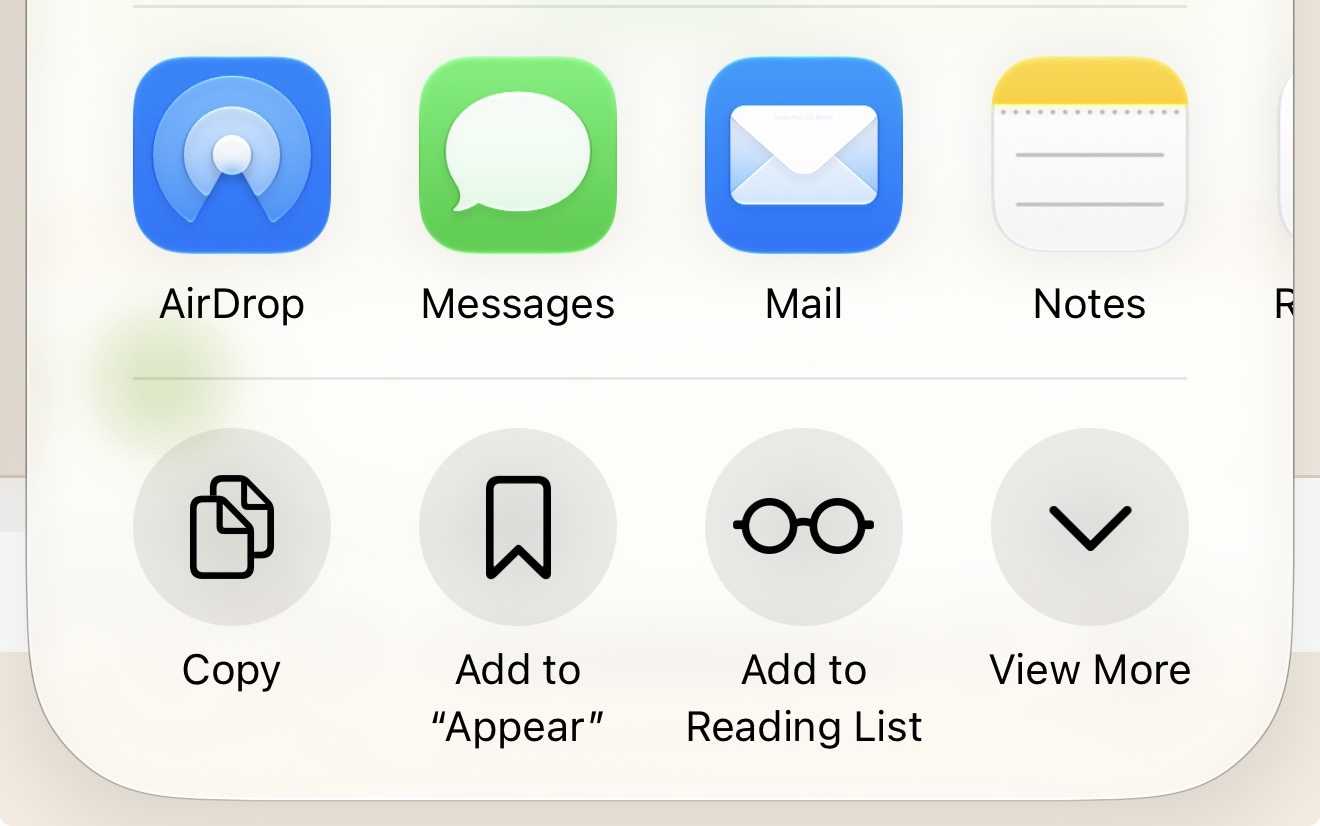
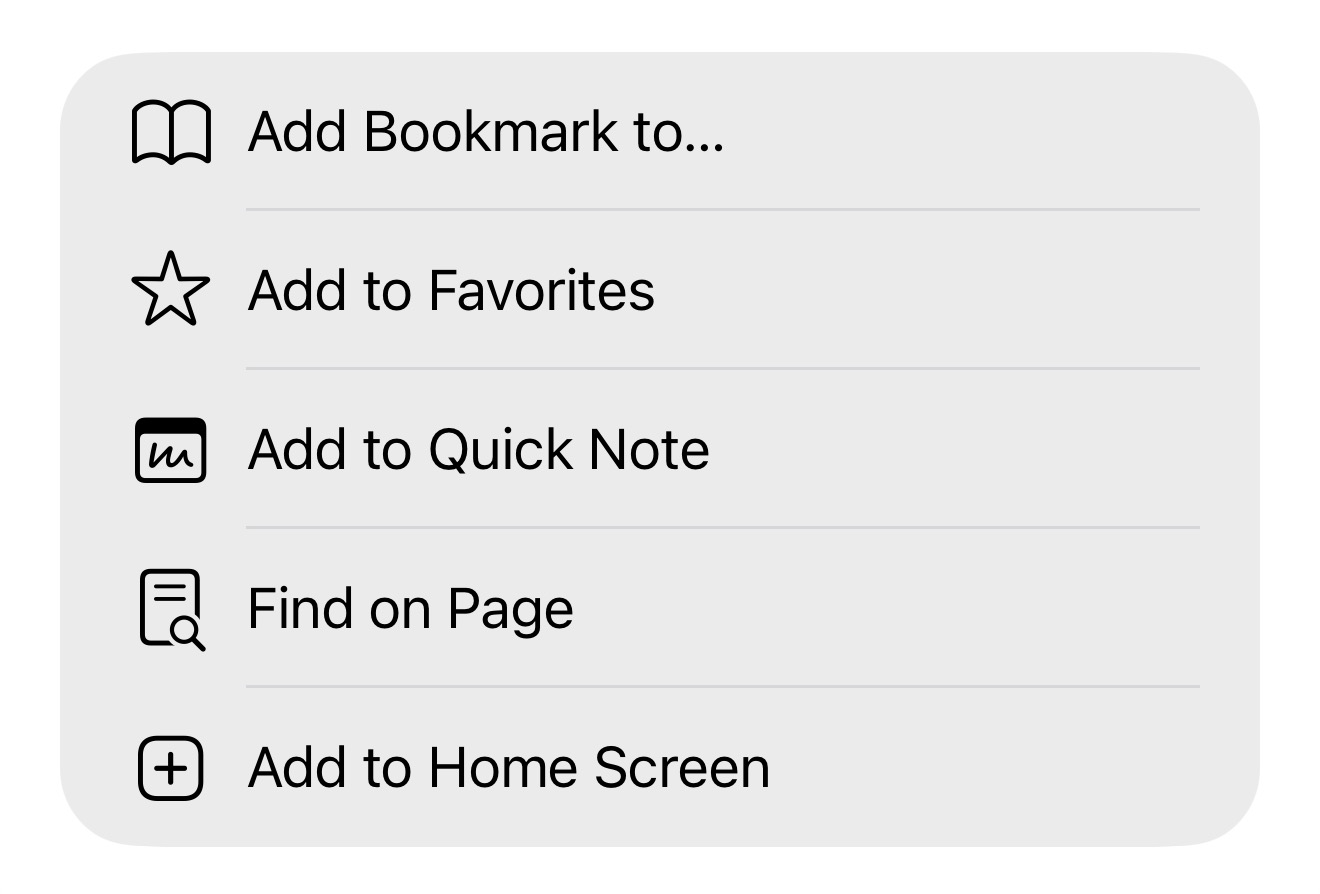
On the confirmation screen, complete these final two actions:
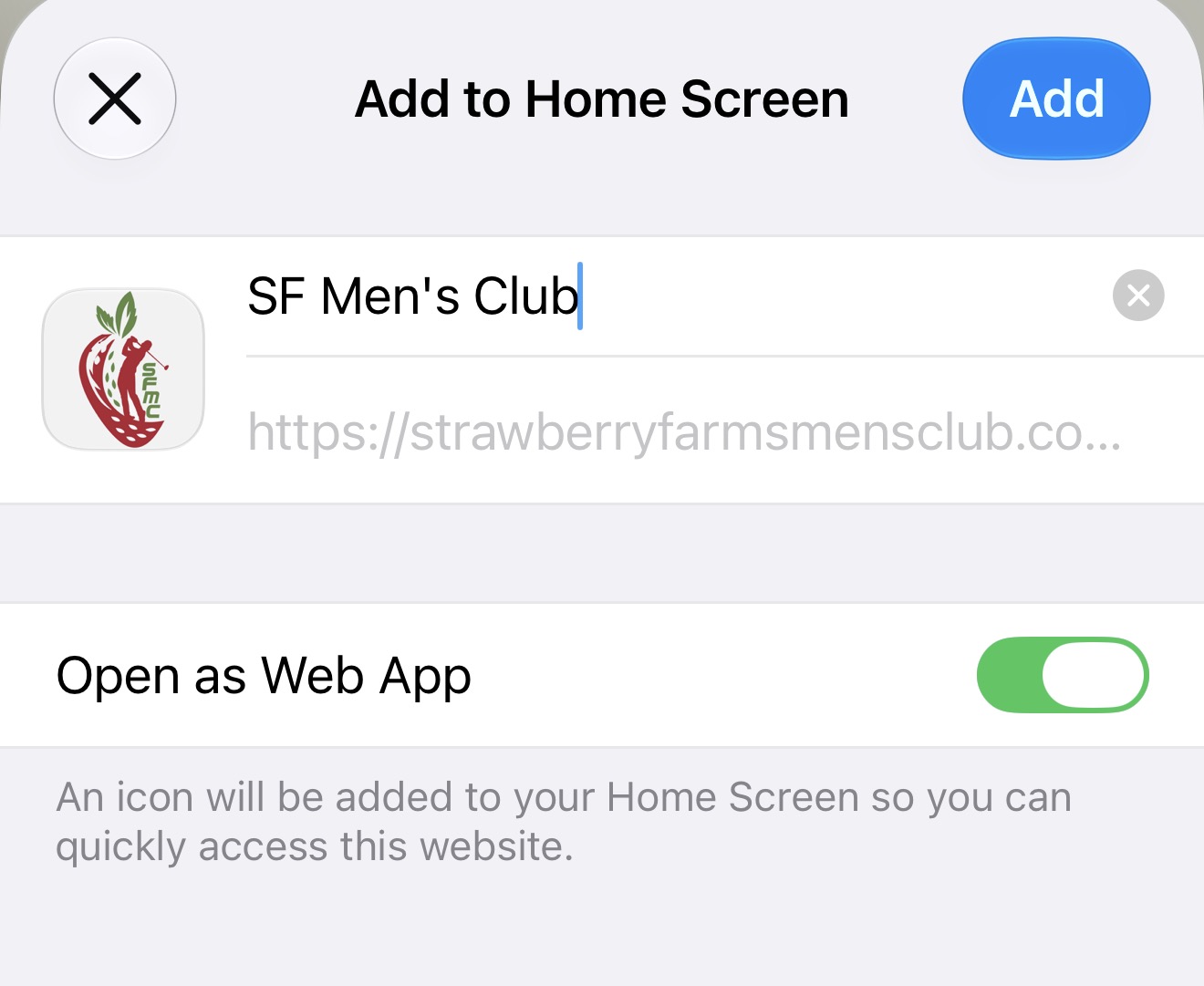
Look for SF Men's Club on the last Home Screen page. You can also swipe down on the Home Screen and search for it.
SF Men's Club
Open iPhone Settings → Apps → Safari → Tabs and choose Bottom or Top. Those layouts make the Share control easier to reach.
Android instructions
Chrome installs the same SF Men's Club web app on an Android Home Screen.
If you are already viewing this page in Chrome on your Android phone, continue to Step 2.
https://strawberryfarmsmensclub.com
Tap the three vertical dots (⋮) to the right of Chrome's address bar.
In Chrome's menu, tap Add to home screen.
Tap Install, then follow the on-screen confirmation. The SF Men's Club icon will appear on your Home Screen.
SF Men's Club
You may still add the shortcut and tap Add. A shortcut marked with the Chrome logo opens inside Chrome rather than as a standalone web app.